
As the title seems to suggest, hopefully below I will be able to demonstrate a method in which you can specifically target Dell driver pack downloads for all your enterprise systems. In a world where we are moving into streamlining, resource management and automation a task like building your driver packs can be fully automated allowing you to free up the required resources.
To demonstrate these capabilities we will be using the Dell Driver Pack Catalog, Powershell and some scripting skills.
The Dell Driver Pack Catalog is basically a library of all new Dell systems. To quote Dell, “The Driver Pack Catalog is an XML file containing metadata about the new Dell systems and WinPE Driver Packs. This XML file is compressed as a Microsoft Cabinet (.CAB) file and digitally signed for delivering it to the customers over the internet.”
To give Dell their due, the idea behind this is almost genius. A central repository with the majority of their newer systems listed on it so that you can download full driver packs directly from Dell, built by Dell (no more custom driver pack building, or relying on 3rd party resources/sources). On this page they detail how you can query the catalog manually, basically by bringing powershell up and putting some commands into it.
The first set of commands you find on the page (after you have probably read part of the Dell wiki post and give up, I did the first time as well) will download the base catalog to the current working directory. This is critical for this process to succeed.
$source = “http://downloads.dell.com/catalog/DriverPackCatalog.cab”
$destination = “$pwd” + “\DriverPackCatalog.cab”
$wc = New-Object System.Net.WebClient
$wc.DownloadFile($source, $destination)

Running these commands generates a file called DriverPackCatalog.CAB in the directory where you called your powershell from, however in it’s current state this isn’t the best use to us and we therefore need to extract the file so we can add some more commands into our powershell window.
$catalogCABFile = “$pwd” + “\DriverPackCatalog.cab”
$catalogXMLFile = “$pwd” + “\DriverPackCatalog.xml”
EXPAND $catalogCABFile $catalogXMLFile
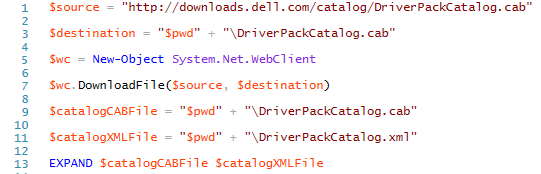
This will now produce an xml file in the working directory, this XML files contains all the data for all the machines that are present inside the Driver Pack Catalog with specific model variations and OS information.
The next advice that Dell provides you is to run the following commands to list out all the models i a readable format
$catalogXMLFile = “$pwd” + “\DriverPackCatalog.xml”
[xml]$catalogXMLDoc = Get-Content $catalogXMLFile
$catalogXMLDoc.DriverPackManifest.DriverPackage | Select-Object @{Expression={$_.SupportedSystems.Brand.key};Label=”LOBKey”;}, @{Expression={$_.SupportedSystems.Brand.prefix};Label=”LOBPrefix”;}, @{Expression={$_.SupportedSystems.Brand.Model.systemID};Label=”SystemID”;}, @{Expression={$_.SupportedSystems.Brand.Model.name};Label=”SystemName”;} –unique
This produces the following where LOB relates to “Line of Business”
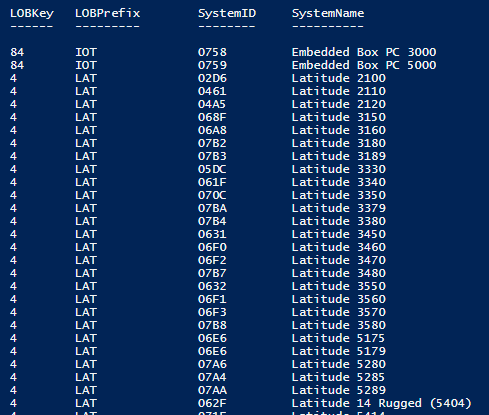
To be fair, this is good information, however I tend to adjust this a bit display OS compatibility as well.
$catalogXMLDoc.DriverPackManifest.DriverPackage | Select-Object @{Expression={$_.SupportedSystems.Brand.Model.name};Label=”SystemName”;}, @{Expression={$_.SupportedOperatingSystems.OperatingSystem.majorVersion};Label=”Operating System”;}, @{Expression={$_.SupportedOperatingSystems.OperatingSystem.minorVersion};Label=”Minor OS Version”;} -Unique
By changing the last line to this it will show you a list of each model with the associated major OS Version and minor OS Version compatibility.
The next logical step is to now grab the required driver pack. Easy!
We want to utilise this line:
$catalogXMLDoc.DriverPackManifest.DriverPackage| ? { ($_.SupportedSystems.Brand.Model.name -eq “model”) -and ($_.SupportedOperatingSystems.OperatingSystem.majorVersion -eq “OSVersion” ) }
Where model = the model name from our steps above and the OSVersion is the matching Major OS Version number.
Using this we can then build the download code:
$cabSelected = $catalogXMLDoc.DriverPackManifest.DriverPackage| ? { ($_.SupportedSystems.Brand.Model.name -eq “model”) -and ($_.SupportedOperatingSystems.OperatingSystem.majorVersion -eq “OSVersion” )}
$cabDownloadLink = “http://” + $catalogXMLDoc.DriverPackManifest.baseLocation + $cabSelected.path
$cabDownloadLink = “http://” + $catalogXMLDoc.DriverPackManifest.baseLocation + “/” + $cabSelected.path
$Filename = [System.IO.Path]::GetFileName($cabDownloadLink)
$downlodDestination = “$pwd” + “\” + $Filename
$wc = New-Object System.Net.WebClient
$wc.DownloadFile($cabDownloadLink, $downlodDestination)
This time when you run this it will begin to download the full driver pack for the supporting OS of the model you have specified.
So, what next? Script it all and automate it! We’ll pick this up in Part Two